Admins
Understand administrator access, manage admin and owner roles, and review how administrative communications are delivered.
Admin and owner roles
An organization admin can open the elba admin portal and manage the security modules and settings available to the organization. The organization owner has admin access plus ownership responsibilities.
Each organization has one owner. Admins and the owner can still use the member experience when enrolled, but their administrative role controls access to the admin portal.
Open the Users page for your region:
Manage admin roles
From Settings → Team → Users, an authorized admin can open an enrolled employee's row actions and:
- Promote a member to admin
- Demote an admin to member
- Manage the employee's group memberships
- Enroll or unenroll an eligible employee
The current owner can also transfer ownership to an eligible admin. Transferring ownership makes the selected admin the new owner and changes the previous owner to an admin.
Role changes affect access to administrative data and controls. Confirm the employee's responsibilities and follow your organization's least-privilege and offboarding process before changing a role.
See User management for enrollment, group, and role-management instructions.
What a new admin receives
When an active employee is promoted to admin, elba sends a promotion email with a link to the admin portal. The new role applies to subsequent authenticated access; if the employee already has elba open, ask them to refresh or sign in again before troubleshooting missing admin controls.
Administrative communications
Admin communications depend on the enabled modules, connected sources, playbooks, and organization settings. They can include operational emails, connection-health messages, or alerts produced by configured workflows. This is not an exhaustive list, and there is no single delivery schedule that applies to every admin notification.
For playbooks with a Notify admins action:
- The workflow can target selected owners or admins where recipient selection is available.
- If no specific recipients are configured, the supported workflow can notify the organization's owner and admins.
- Delivery uses the recipient's own communication channel when they have chosen one, otherwise the organization default channel.
- A deliverable channel and a healthy integration are required for chat delivery; email can be used by the delivery logic when a selected chat channel is unavailable for that user.
An admin can update a person's channel from Settings → Team → Users, and each person can choose their own from the member portal. Available choices depend on the connected Slack, Microsoft Teams, or Google Chat integrations. See Members and Sam for employee-facing channel and reminder settings.
Weekly digest
Enrolled owners and admins in active organizations with at least one playbook receive a private weekly digest. It summarizes new issues and closures from the preceding seven days, with links to Third-Party Apps, Data Protection, and Authentication. Open a module to review its current issues.
The digest is scheduled on Thursdays at 11:00: Paris time for EU organizations and New York time for US organizations.
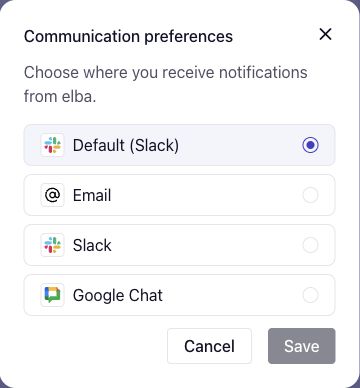
Delivery uses your existing communication preference: email, Slack, Microsoft Teams, or Google Chat. Each digest uses one channel. If your selected chat channel is unavailable before delivery, elba uses an available organization default or email.
To choose your channel:
- Open the member portal, select your profile menu, then Communication preferences.
- Choose an available channel or Default to follow your organization's choice, then Save.
This preference also applies to your other elba notifications. Chat choices depend on your connected integrations.
Recommended access review
Review administrator access whenever responsibilities or employment status change:
- Open Settings → Team → Users and filter or scan for the Admin and Owner role badges.
- Confirm that every admin still needs administrative access.
- Demote administrators who no longer require the role.
- Transfer ownership before the current owner leaves the organization.
- Review connected integrations and workflow recipients for references to former administrators.
Unenrolling or demoting a user in elba does not replace deprovisioning in your identity provider or connected applications. Complete those changes in the authoritative systems as part of your offboarding process.