Third-party apps
Maintain one application inventory across integrations, email, and Browser Security while keeping observed usage distinct from verified access.
Overview
Third-Party Apps is elba's organization-wide application inventory. It combines evidence from identity and direct application integrations, OAuth grants, email activity, Browser Security usage, privacy-safe AI account status observations, and installed browser extensions into one application record.
Every signal keeps its source and an explanation of how it was established. Browser activity is an observation, not proof that an account exists; email activity supports evidence of use; and only accounts, grants, or assignments from a connected source are confirmed. Use this distinction to understand adoption without turning browser observations into access or remediation decisions.
Open the module for your Elba region:
Navigate the workspace
The module has five tabs:
- Radar highlights the risks and inventory changes that need attention.
- Inventory lists detected applications, users, evidence, freshness, and organization policy.
- Issues tracks security issues and their remediation status.
- Playbooks contains available automation templates and your configured workflows.
- Sources shows the connections that supply application data.
The sources and actions available to your organization depend on its connected integrations and Browser Security deployment. Use the capability, freshness, and connection status shown in elba as the source of truth.
Use the Radar
The Radar contains seven current widgets:
- Risky usage for applications with risky permissions
- Critical & High risk CVEs for high-severity vulnerability records
- Data Breaches for vendor-breach records
- Playbooks for configured workflows and available templates
- Discovered apps grouped by reputation status
- Shadow AI apps for AI applications that have not been explicitly approved
- Low adoption apps for applications with low user counts
Select See all on a widget to open the related filtered inventory. Use Export to download the Radar report when you need an offline review.
Reputation widgets use applications that elba has assessed. An organization-private application can still appear in Inventory while elba is matching it to the application catalog. It is marked Identification in progress, and its Reputation score shows Reputation score not yet available until a catalog profile is available.
Review CVEs and data breaches
From Radar, select View history on the CVE or data-breach card, then open an application's About panel to review its records.
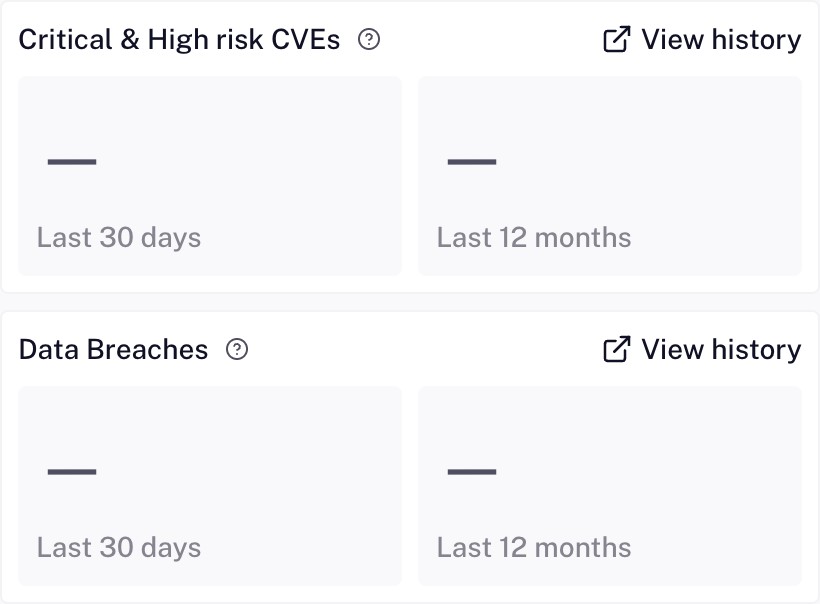
The EU production Radar, captured on 9 October 2026.
Open a record's source link to read the original report. Source and dates shows its public dates and, for CVEs, affected versions. Compare those versions with the version you use before assessing your exposure.
A dash means the current value is unavailable. You can still open the history; an unavailable value does not mean there are no records.
Review the inventory
The Inventory table displays:
- Application, with its detection sources and identification status
- Reputation score, based on elba's automatically assessed catalog profile when one is available
- Access exposure, based only on verified connector evidence
- SSO adoption, when verified account evidence supports the calculation
- Users, deduplicated across current evidence, with browser users who were not recently detected shown separately
- Usage policy, which records your organization's approval decision
Search by application name or use the Usage policy and Reputation score filters alongside owner, source, hosting location, category, compliance information, CVEs, data breaches, AI classification, or risky permissions. Source filtering includes Browser Security sources.
How evidence is established
The Users view explains how each signal was established:
- Confirmed by a connected source: an account, OAuth grant, or Okta assignment reported by a connected source
- Supported by email activity: email activity that supports evidence of use but does not verify an account
- Observed in the browser: browser application usage, a browser-observed AI account status, or a browser-extension installation
The same person and application can have evidence from several sources. elba combines those signals under one user where they can be linked safely, while preserving every source, evidence type, first- and last-seen date, and whether the signal is current.
Browser evidence is current for 30 days after it was last observed. Older browser evidence remains visible as Not recently detected so an application does not disappear from history. Connector evidence is not aged out by this browser window; its own last synchronization date remains visible.
Application identity and automated catalog assessment
elba resolves applications using catalog identifiers accepted by its automated reviewer, such as exact source mappings and domains, never a display name alone. A high-confidence application that does not yet match the global catalog is kept as an organization-private provisional identity and marked Identification in progress. Its display name and safe application domain can support your investigation without exposing the private record to another organization.
Catalog assessment is performed by elba's automated enrichment and review pipeline; this status does not represent manual human approval. Your organization's Approved, Not approved, or Needs review policy remains a separate administrator decision.
Applications, suites, and standalone browser extensions appear in the default inventory. Signals classified as devices, operating systems, platform components, general websites, or ambiguous items are held outside the default inventory for classification instead of being presented as ordinary SaaS applications.
Reputation score
Elba maps the application score to four states:
- Trusted: 7 to 10
- Questionable: 5 to less than 7
- Untrusted: 0 to less than 5
- Reputation score not yet available: no score is available yet
The score is an investigation aid, not an approval decision. A private provisional application shows Reputation score not yet available until an automatically assessed catalog profile is available. Review the application, publisher, confirmed permissions, evidence, users, and business need before changing its policy.
Usage policy
Your organization can apply one of four policies:
- Not reviewed for a newly detected application
- Needs review for an application awaiting a decision
- Approved for an application your organization permits
- Not approved for an application your organization does not approve
The usage policy is separate from the reputation score and access exposure; elba does not blend them into one risk score. Changing an application to Approved prevents new issues from being created for that application. Review existing issues and your organization's policy before approving it.
An explicitly Not approved private application can be enforced by Browser Security only when elba has a safe registrable application domain. The application details explain when no enforceable domain is available. To set a policy for an application elba has not observed yet, see Add an application domain.
Application details
Select an application to open its details. The panel has two tabs:
- About separates Application details, Reputation score, Access exposure, Observed users, and Usage policy. It also shows the available catalog assessment, risky permissions, breaches, CVEs, compliance, hosting, DNS information, and extension installations.
- Users shows linked users or unlinked connector accounts in Detected users and accounts, with detection sources, evidence types and explanations, first and last detection, freshness, authentication method, AI account status, and the actions actually supported for that evidence.
For supported AI tools, Browser Security reports the observed AI account status as Work account, Personal account, No account signed in, or Unknown. The canonical inventory can additionally display Work and personal accounts, but only when current work and personal evidence coexist for the same user and application. This combined status is computed by the inventory rather than reported by the browser, so Browser Logs cannot filter by it. All of these values remain browser observations: Work account does not mean that elba verified an application account. Detected AI account email addresses and domains, page content, tenant hostnames, and full URLs are not exposed in the inventory, Browser Logs, or public API.
Browser-only applications show Reputation score not yet available and No account access confirmed by a connected source. SSO adoption is unavailable until a connected source confirms account access. Browser-observed usage and extension rows do not offer account remediation. Only eligible connector-confirmed evidence can expose a supported distribute or revoke action.
The panel also lets you assign an owner, set business criticality, and update the usage policy.
Add an application domain
Use Add application domain to set a usage policy for an application elba has not observed yet, for example to block a tool before employees start using it. Organization owners and administrators can add a domain from the inventory.
- Open Third-Party Apps → Inventory and select Add application domain.
- In Application domain, enter the domain only, such as
app.example.com, not a full URL. - Optionally, enter an Application name. It is shown only until elba identifies the application.
- Choose the Usage policy. Not approved is selected by default; Needs review and Approved are also available.
- Select Review browser access and read the preview. It shows whether an active Browser Security playbook will block the domain, the message employees will then see, and whether the domain belongs to an application elba already knows.
- If you entered a subdomain, confirm that the policy applies to the registrable domain, including its subdomains. An internationalized domain is saved in its ASCII form, which you also confirm.
- Select Add domain as followed by the policy, for example Add domain as Not approved.
elba rejects domains it cannot target safely:
- URLs, paths, ports, email addresses, and IP addresses
- Public suffixes, such as
comorco.uk - Shared-hosting domains, such as
customer.github.io - Publisher-wide domains used by many products, such as
google.comormicrosoft.com - A domain that already has an active target in your organization, or that matches more than one application
The application name cannot contain a URL, domain, email address, or IP address.
How an added domain behaves
- Browser Security blocks the domain only when its policy is Not approved and an active Browser Security playbook uses the Unauthorized app visited trigger with the Block page access action. Blocking covers the registrable domain and its subdomains, and starts after enrolled browser extensions refresh their configuration.
- A domain elba has not observed appears in the inventory with no users and an Unobserved badge. Its details show Admin-defined and Unobserved. elba does not create users, accounts, or usage for it.
- If the domain already belongs to an application in your inventory or in elba's catalog, the policy is applied to that application instead of a new entry.
- When Browser Security later observes the application on that domain, the observed users and usage join the same entry, the Unobserved badge disappears, and your policy stays in place. If elba later identifies the domain as a catalog application, the entry and its policy move to that application.
- Change the policy later from the Usage policy column or the application details. Applications with a domain target cannot be selected for bulk actions.
Remove an added domain
Open the application details, select Remove target, and confirm with Remove target. elba restores the usage policy the application had before the domain was added and keeps any observed evidence, users, and usage history. An application that elba never observed leaves the inventory.
Applications managed in Okta
When Okta is your organization's elba identity provider, or when you connect an Okta API Services application for Third-Party Apps, elba reads which Okta applications each person synchronized into elba is assigned, directly or through an Okta group, and each application's sign-on type: federated SSO (SAML, OpenID Connect, or WS-Federation), password vault (SWA), or bookmark. elba only reads Okta; change assignments in the Okta Admin Console.
- Each assignment appears as Assigned in Okta for that person and application. It is confirmed by a connected source and counts as access in user and access totals, but it never opens an issue, receives a tag, or changes the application's usage policy.
- When an application is federated in Okta and assigned to a person, their login method shows SSO through Okta instead of a password inferred from email activity. Password-vault and bookmark applications are managed in Okta but do not count as SSO.
- Once your organization has Okta assignments, the inventory offers two filters: Managed in Okta shows applications with Okta assignments, and Not managed in Okta highlights applications with no Okta assignment that at least 5 people use, confirmed by a connected source or seen by the browser extension. Turn on Include email-only apps to also count applications seen only in email. Not being managed in Okta does not make an application unsanctioned or risky by itself.
- Once elba reads Okta sign-ins, each Okta assignment shows the person's last sign-in through Okta, and the Assigned, no Okta sign-in in 90 days filter shows applications with someone assigned more than 90 days ago who has not signed in through Okta since. On the application's users, that assignment reads No sign-in in 90 days. These are candidates to unassign in Okta; bookmark applications never appear there.
Only Okta applications that elba can match with confidence to its application catalog appear. Others are skipped, so an application missing from Managed in Okta can still exist in Okta. Assignments refresh after each Okta directory synchronization, or every day for an API Services application. The Okta service integration needs an administrator role that can read every application, and sign-ins need okta.logs.read; see Connect Okta.
Investigate issues
The Issues tab is the operational queue for detected account and permission risks. You can filter issues by member, group, source, status, dates, usage policy, application, publisher, category, hosting, compliance information, AI classification, reputation, risky permissions, CVEs, or data breaches.
Available bulk actions are determined by the source and issue state. They can include:
- Distribute issues to enrolled employees
- Ignore selected issues
- Revoke permissions where the source supports it
An issue is not automatically sent to an employee when it is detected. Distribution happens through an admin action or an active playbook.
Reopen an issue ignored by an administrator
An organization administrator or owner can recover a mistaken Ignore decision on a Third-Party Apps issue.
- Open Third-party apps → Issues. Use the status filter to include issues completed by an administrator as Ignored; the default active list hides completed decisions.
- Open the ignored issue and select Reopen issue.
- Review the confirmation. Select Cancel to leave the issue unchanged, or Reopen issue to confirm.
- After the success message, the issue returns to Detected in the default active list. You can review it and use the normal supported distribution or resolution actions again.
Reopening preserves the application, source, associated member, evidence, and previous Ignore decision. The issue history records who reopened it and when. Application access and member state stay unchanged; reopening does not revoke or restore external access. Review your active playbooks before returning an issue to the actionable queue.
Reopening applies to individual issues ignored by an administrator. It is unavailable for employee-completed issues, Changes made decisions, or issues whose remediation has started. Bulk reopening is not supported. If an error appears, refresh the issue and check its current status before trying again.
Configure playbooks
Open Playbooks to select a template or create a workflow. The editor only offers triggers, conditions, and actions supported by the selected source. A workflow can distribute permission-review issues where supported. See Review CVEs and data breaches for vulnerability and incident records.
If CVE or data-breach monitoring is temporarily unavailable, the activation or resume action explains it. You can still view or pause an existing playbook and edit unrelated settings.
Before activation:
- Confirm that the intended source is connected and synchronized.
- Review the trigger and every condition.
- Configure exclusions or an allow-list when the source supports them.
- Check who will receive the action and whether a notification is sent immediately.
- Activate the workflow and monitor its run history.
Notification timing is controlled by the workflow and communication settings; there is no universal fixed weekly schedule.
Employee remediation
Distributed issues appear in the employee's Checklist. For a Third-Party Apps issue, the employee can:
- Ignore the issue and continue using the application.
- Revoke the permissions when the connected source supports direct revocation.
If a source connection has an error, actions that change the source can be temporarily unavailable. Administrators retain the issue history and can act from the Issues tab.
Recommended review workflow
- Connect the relevant sources and wait for their initial synchronization.
- Start with Radar to identify risky usage, vulnerable apps, breaches, Shadow AI, and newly discovered apps.
- Open Inventory to review the application identity, evidence source, freshness, reputation score, access exposure, and business owner.
- Set the application to Needs review, Approved, or Not approved according to your policy.
- Use Issues for verified account- or permission-level investigation and supported remediation.
- Add a playbook only after validating the intended audience, exclusions, and actions.